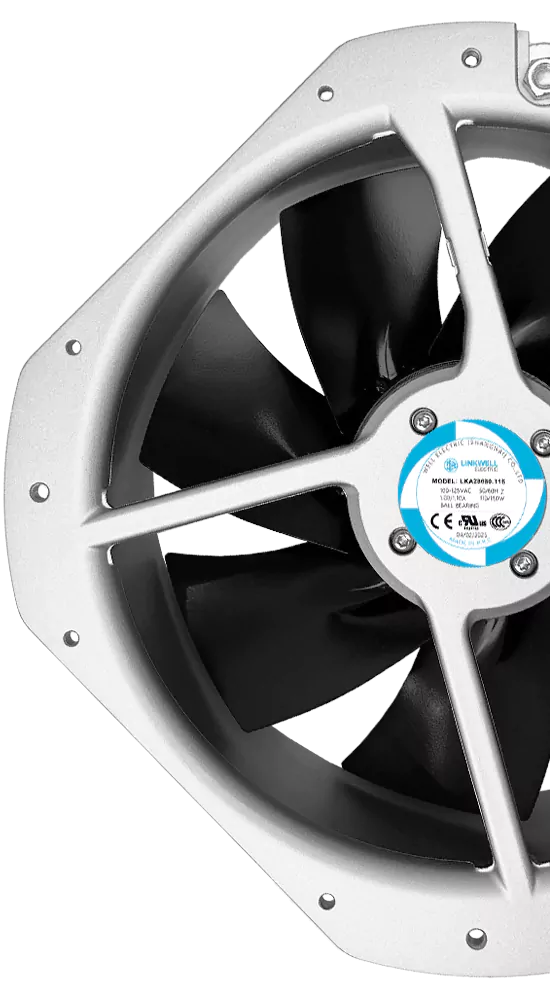
When you compare Chassis Fan vs CPU Fan, the CPU fan usually cools your processor faster and more effectively. Think of your PC like a city: the CPU fan acts as the ambulance, rushing heat away from the most critical spot, while the chassis fan works like traffic control, keeping air moving smoothly through the streets. Many people believe more fans always mean better cooling, but that’s not true. You need smart placement, not just extra fans. Static pressure fans and airflow fans each have their own jobs—they’re not one-size-fits-all.
- Having more fans does not always improve cooling—placement matters more.
- Static pressure fans and airflow fans are designed for different tasks.
Differences in Core Technologies
- The CPU fan cools your processor faster than the chassis fan due to its direct placement on the CPU.
- Smart fan placement is crucial; having more fans does not guarantee better cooling.
- Use high-quality DC fans with PWM control for efficient cooling and quieter operation.
- Regularly clean your fans and filters to maintain optimal airflow and prevent overheating.
- Balance intake and exhaust fans to create effective airflow, keeping your entire system cool.
Chassis Fan vs CPU Fan Quick Comparison
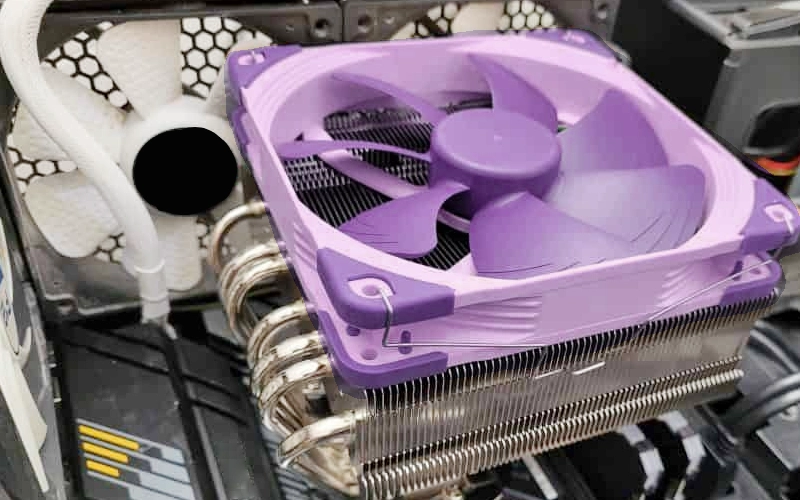
When you look at Chassis Fan vs CPU Fan, you notice some big differences right away. Each fan has its own job, and the way they move air makes a huge impact on your PC’s temperature. Let’s break it down with a quick table:
| Feature | Chassis Fan | CPU Fan |
|---|---|---|
| Main Purpose | Moves air through the case | Cools the CPU directly |
| Airflow Type | High airflow, low pressure | High pressure, focused airflow |
| Speed Control | Often basic or manual | Advanced (PWM, auto control) |
| Placement | Case walls or front/back | Directly on CPU heatsink |
| Impact Area | Whole system | CPU only |
Cooling Speed
If you want to know which fan cools faster, focus on the CPU fan. It sits right on top of the processor, pulling heat away the moment your CPU starts working hard. This direct contact means the CPU fan reacts quickly to temperature spikes. In a Chassis Fan vs CPU Fan showdown, the CPU fan wins for speed every time.
Now, if you use a fanacdc DC Fan with PWM control, you get even more speed control. These fans can ramp up or slow down instantly, matching your system’s needs. Standard AC fans usually run at one speed, but DC fans let you fine-tune performance. That’s a big deal when you want fast, smart cooling.
Cooling Effectiveness
Cooling effectiveness depends on how well each fan handles airflow and pressure. CPU fans use high static pressure to push air through tight heatsink fins. Chassis fans focus on moving lots of air through the case, keeping everything inside at a safe temperature.
Let’s compare airflow and pressure:
| Fanacdc DC Fans Performance | Industry Average Performance |
|---|---|
| Airflow at 60Hz: 40 CFM | Varies by model |
| Static Pressure at 60Hz: 4 mmH2O | Typically lower at high air flows |
Fanacdc DC Fans stand out because they combine strong airflow with high static pressure. This means you get both fast heat removal and steady cooling, whether you use them as a chassis fan or a CPU fan. With smart speed control, you can keep your system cool without wasting energy or making extra noise.
Tip: For the best results, use a high-quality DC fan with PWM control for your CPU and at least one for your chassis. This setup gives you the best of both worlds—speed and efficiency.
Fan Roles and Functions
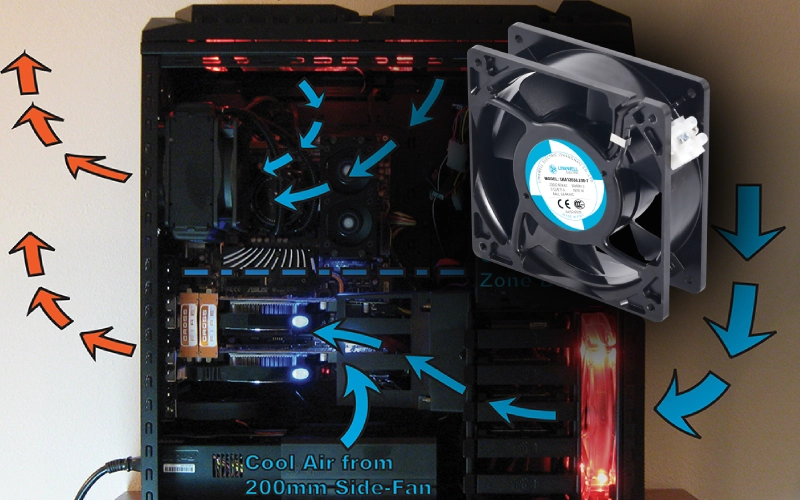
Chassis Fan Airflow
When you look inside your PC, you’ll spot chassis fans working quietly along the case walls or at the front and back. These fans don’t just blow air around—they set the stage for everything else. The airflow pattern they create decides how cool your graphics card, memory, and even your storage drives stay. If you want your system to run smoothly, you need the right balance between intake and exhaust. Most experts recommend a 2:1 ratio of intake to exhaust. This setup keeps the air moving and prevents heat from building up in corners.
Tip: If you notice hot spots inside your case, try adjusting your intake and exhaust fans. Sometimes, just flipping a fan’s direction can drop your temperatures by several degrees.
fanacdc Industrial Cooling Fans and DC Fans take airflow to the next level. They use brushless motors and smart controls to move air efficiently, even in tough environments. You get less noise, less energy use, and a longer lifespan compared to standard fans.
| Feature | DC Fans (fanacdc) | AC Fans |
|---|---|---|
| Energy Efficiency | Up to 70% less power consumption | Standard efficiency |
| Motor Technology | Brushless motor technology | Traditional motor |
| Maintenance | Longer lifespan bearings | More frequent upkeep |
| Cooling Capability | Dynamic, smart cooling | Fixed-speed operation |
| Cost Over Time | Lower long-term costs | Higher long-term costs |
CPU Fan Heat Dissipation
Now, let’s talk about the CPU fan. This fan sits right on top of your processor, ready to pull heat away the moment things get intense. When you launch a game or edit a video, your CPU can pump out over 200 watts of heat. That’s a lot for such a small chip! The CPU fan’s job is to grab that heat and push it through the heatsink fins, keeping your processor cool and your system stable.
If you compare Chassis Fan vs CPU Fan, the CPU fan handles the hottest spot in your PC. It reacts fast to temperature spikes, making sure your computer doesn’t slow down or crash. With a fanacdc DC Fan on your CPU cooler, you get smart speed control and real-time monitoring. This means your fan only works as hard as it needs to, saving energy and cutting down on noise.
Note: A high-quality CPU fan can be the difference between a smooth gaming session and a sudden shutdown.
By understanding how each fan works, you can build a system that stays cool, quiet, and efficient—no matter how hard you push it.
Chassis Fan vs CPU Fan Performance
Gaming and Heavy Loads
When you fire up a demanding game or run heavy software, your PC turns into a mini furnace. The processor works overtime, and the graphics card joins the party. In these moments, the Chassis Fan vs CPU Fan debate gets real. The CPU fan jumps into action first. It sits right on top of the processor, pulling heat away before it can cause trouble. You’ll notice your CPU temperatures drop quickly, even when the action gets intense.
But the chassis fan isn’t just a background player. It keeps fresh air moving through the case, pushing hot air out and pulling cool air in. Without this airflow, heat would build up around your graphics card, memory, and storage. That’s when you start to see lag, crashes, or even hardware damage.
If you use a fanacdc DC Fan with smart speed control, you get the best of both worlds. The fan senses when your system heats up and automatically increases speed. When things cool down, it slows to keep noise low. This smart control means you don’t have to worry about overheating during a marathon gaming session or a long video render. Your system stays cool, quiet, and efficient.
Pro Tip: Place a high-pressure fanacdc DC Fan on your CPU cooler and a high-airflow model as your chassis fan. This combo handles both direct heat and overall airflow, giving you stable performance even under heavy loads.
Everyday Use
Not every day is a gaming day. Sometimes, you just browse the web, stream videos, or work on documents. In these situations, your PC doesn’t generate as much heat. The Chassis Fan vs CPU Fan question shifts. The CPU fan still handles quick bursts of heat, like when you open a new app. The chassis fan keeps the whole system comfortable, making sure no hot spots develop.
Here’s where fanacdc DC Fan’s smart features shine. These fans come with programmable timers, so you can set them to run only when you need extra cooling. Voice control lets you adjust fan speed without lifting a finger. If you connect your fan to a smart home system, it can change speed based on room temperature. The energy-efficient DC motors use up to 70% less power than old-school AC fans, saving you money on your electric bill. Remote management means you can tweak settings from your phone, and climate-based automation keeps your PC cool even if the weather changes.
Check out how these features impact your daily experience:
| Feature | Impact on Cooling Performance |
|---|---|
| Programmable timers | Fans run only when needed, reducing noise and wear |
| Voice control | Instant speed changes for sudden heat spikes |
| Smart home integration | Fans adjust automatically to room temperature |
| Energy efficiency | Lower power bills and less heat generated |
| Remote management | Fine-tune airflow from anywhere in your home |
| Climate-based automation | Fans respond to weather, keeping your PC stable |
With these smart controls, you get a system that feels almost alive. It reacts to your habits, your environment, and your workload. You don’t have to think about cooling—your fans do the work for you.
Note: If you want a quiet PC for everyday use, set your fanacdc DC Fans to a lower speed profile. You’ll barely hear them, but your system will stay cool and safe.
In the end, the Chassis Fan vs CPU Fan debate isn’t about picking one winner. It’s about using both fans together, with smart features, to match your needs—whether you’re gaming all night or just checking email.
Which Fan Matters Most
System Temperature Impact
When you want your PC to stay cool and healthy, both fans play a role, but the CPU fan often takes the spotlight. It sits right on the processor, ready to whisk away heat the moment things get intense. If your CPU overheats, your whole system can freeze or shut down in seconds. That’s why, for most users, the CPU fan is the first line of defense.
However, don’t underestimate the chassis fan. It keeps fresh air moving through the case, helping every part breathe easier. During long gaming sessions or heavy workloads, the chassis fan’s ability to push air past tight spots becomes crucial. Fans with higher static pressure, like fanacdc DC Fans, shine here. They cut through dust filters and crowded cables, keeping temperatures steady even when your PC works overtime.
If your case feels stuffy or your graphics card runs hot, upgrading your chassis fan can make a world of difference. For most users, a smart, high-pressure DC fan from fanacdc offers the best balance of airflow and control.
Failure Risks
Fans don’t last forever. Dust, dirt, and humidity can slow them down or stop them cold. Humid air can sneak into the bearings, while dust cakes onto the blades, choking airflow. DC fans from fanacdc are built to handle these challenges, making them a smart pick for anyone who wants peace of mind.
Here’s a quick look at what can go wrong:
| Cause | Implication for System Stability |
|---|---|
| Dust and dirt | Reduces airflow and cooling efficiency, potentially leading to overheating. |
| Mechanical wear and tear | Can cause the fan to stop spinning, leading to increased temperatures. |
| Software or firmware issues | May result in incorrect fan operation, affecting cooling performance. |
| Power supply problems | Can lead to fluctuations that may damage the fan or other components. |
CPU fans usually wear out faster, with an average lifespan of about three years, while chassis fans can last five to six years. If you notice strange noises or rising temperatures, it’s time to swap out the failing fan. Prioritize your CPU fan if you game, edit videos, or push your processor hard. If your system runs in a dusty or humid room, consider upgrading both fans to a fanacdc DC Fan with smart controls and environmental resistance.
| Fan Type | Average Lifespan |
|---|---|
| Chassis Fan | 5-6 years |
| CPU Fan | 3 years |
Tip: For the best system health, don’t wait for a fan to fail. Upgrade to a smart DC fan before trouble starts, and your PC will thank you with cooler temps and quieter days.
Upgrade and Prioritization Tips
Overclocking Needs
If you love pushing your CPU to the limit, cooling becomes your best friend. Overclocking heats up your processor fast, so you need a plan that keeps things chill:
- Place intake fans at the front or bottom of your case and exhaust fans at the rear or top. This setup creates a steady breeze that sweeps heat away.
- Clean dust from your fans and heatsinks every few months. Dust acts like a blanket, trapping heat right where you don’t want it.
- Adjust fan speeds in your BIOS or with software. Crank them up when you game or render video, then slow them down for quiet browsing.
- Use high-quality thermal paste and consider adding extra case fans or even liquid cooling if you want to go all out.
Fanacdc DC Fans shine in these scenarios. Their long service life means you won’t worry about sudden failures during a marathon gaming session. Smart speed control reacts instantly to temperature spikes, so your system stays cool even when you push it hard.
Quiet and Efficient Builds
Want a PC that whispers instead of roars? You can build a quiet and efficient system with a few smart choices:
- Choose larger fans, like 140mm models, and run them at lower speeds. Bigger blades move more air with less noise.
- Use PWM fans to fine-tune the balance between silence and cooling. Set custom fan curves so your PC stays quiet during light tasks and only ramps up when needed.
- Keep fans and filters clean. A dusty fan works harder and gets louder.
- Place two intake fans at the front and one exhaust at the back for most builds. This setup keeps air moving smoothly and quietly.
Fanacdc DC Fans operate at less than 30dB and use up to 70% less energy than many competitors. That means you get a cooler, quieter PC and lower power bills.
Budget Choices
Building on a budget? You can still upgrade your cooling without breaking the bank. Here’s a quick comparison:
| Fan Model | CFM Output | Price | Features |
|---|---|---|---|
| Parrot Uncle 60-inch | 8,600+ | $99 | DC motor, whisper-quiet |
| Craftmade Augusta 60-inch | 4,200 | $138 | DC motor, reversible |
| Hunter Builder Plus 60-inch | 4,800 | $145 | LED lighting, remote control |
Fanacdc DC Fans offer strong airflow, smart controls, and long life at a competitive price. You get reliable cooling and energy savings, making them a smart pick for any budget.
Tip: Avoid common mistakes like ignoring fan direction or letting dust pile up. A balanced airflow setup and regular cleaning keep your system cool and your fans running longer.
Conclusion
You’ve reached the finish line in the great chassis fan vs CPU fan debate. Let’s keep it simple. If you want fast, direct cooling for your processor, the CPU fan takes the crown. It sits right on the heat source and reacts in real time. That’s like having a firefighter stationed inside your house, ready to put out flames before they spread.
Chassis fans play a different but crucial role. They keep the air moving, sweep away lingering heat, and help every part of your PC breathe easy. Think of them as the wind that clears smoke from a room. Without good airflow, even the best CPU fan can’t save your system from overheating.
So, what should you do? Here’s a quick checklist:
- Prioritize a high-quality CPU fan if you game, edit videos, or push your processor hard.
- Upgrade your chassis fans if your case feels stuffy or your graphics card runs hot.
- Choose smart DC fans with PWM control for both roles. These fans adjust speed automatically, save energy, and run quietly.
- Clean your fans and filters every few months. Use compressed air to blast dust from the blades and heatsinks.
Remember: A cool PC is a happy PC. Smart cooling means fewer crashes, longer hardware life, and quieter days.
If you want the best of both worlds, fanacdc DC Fans and Industrial Cooling Fans make it easy. These fans combine strong airflow, high static pressure, and intelligent speed control. You get peace of mind, lower energy bills, and a system that stays cool no matter what you throw at it.
You want fast cooling? The CPU fan wins for speed, pulling heat from your processor right away. Chassis fans keep air moving, helping every part stay cool. Recent studies show airflow drops by 57% and static pressure by 76% inside a case, so smart fan placement matters. For best results, follow these steps:
- Set up intake and exhaust fans for balanced airflow.
- Pick fans with high CFM and low noise.
- Use smart DC fans like fanacdc for automatic speed control.
Fanacdc DC Fans and Industrial Cooling Fans give you strong airflow, quiet operation, and smart features. Your PC stays cool, efficient, and ready for anything.
FAQ
What’s the main difference between a chassis fan and a CPU fan?
A chassis fan moves air through your whole case, like opening windows in a stuffy room. A CPU fan sits right on your processor, pulling heat away fast. Each fan tackles a different cooling job.
Can I use the same fan model for both chassis and CPU cooling?
You can, but it’s not ideal. CPU fans need high static pressure to push air through tight heatsinks. Chassis fans work best with high airflow. Fanacdc DC Fans offer models for both, so you get the right tool for each spot.
How often should I clean my PC fans?
Dust loves to hide in fans. Clean them every two to three months. Use a can of compressed air and a soft brush. Focus on the blades and the heatsink. This keeps your system cool and quiet.
Will more fans always make my PC cooler?
Not always. You need smart placement, not just more fans. Too many can mess up airflow and trap heat. Aim for balanced intake and exhaust. Quality matters more than quantity—especially with smart DC fans.
Why choose a fanacdc DC Fan over a regular AC fan?
Fanacdc DC Fans use brushless motors, smart speed control, and run quieter. They save energy and last longer. You get better cooling, less noise, and lower power bills. That’s a win for your PC and your wallet.