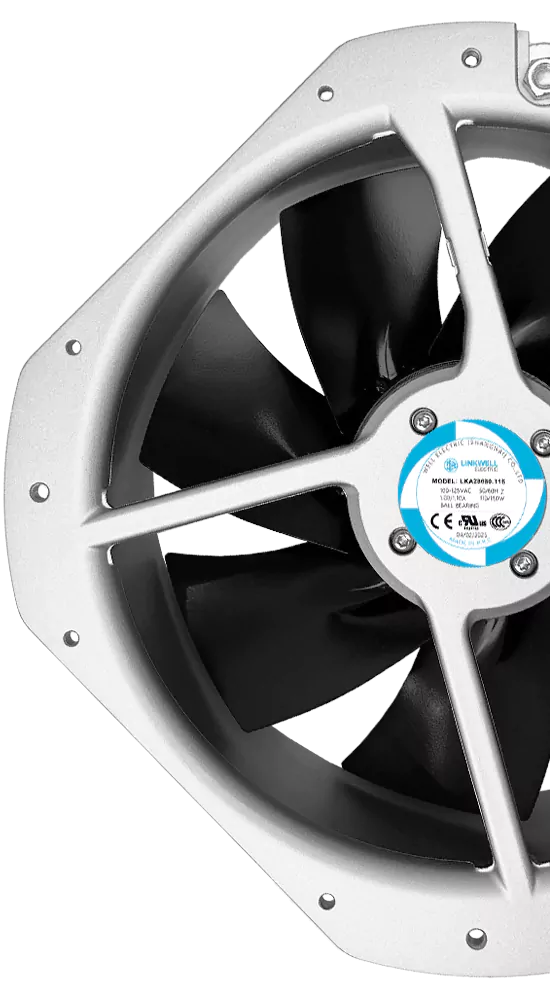
If you want your PC to run cool and last longer, chassis fans play a key role. What is Chassis Fan? You can think of it as a small but powerful fan mounted inside your computer case that moves air to keep everything at a safe temperature. When you add or upgrade chassis fans—like advanced DC models from fanacdc—you help prevent dust buildup and reduce the risk of overheating. This not only boosts performance but also extends the life of your hardware, especially if you push your system hard with gaming or demanding tasks.
The Essentials
- Chassis fans are essential for cooling your PC. They move air to prevent overheating and extend hardware life.
- Proper fan placement is crucial. Install intake fans at the front and exhaust fans at the back or top for optimal airflow.
- Quality matters more than quantity. A few high-quality fans can cool your system better than many cheap ones.
- Regularly clean your fans to avoid dust buildup. This keeps airflow strong and reduces noise.
- Choose fans based on your PC’s needs. Gaming PCs require more cooling than office setups, so adjust your fan configuration accordingly.
What is Chassis Fan
Definition and Function
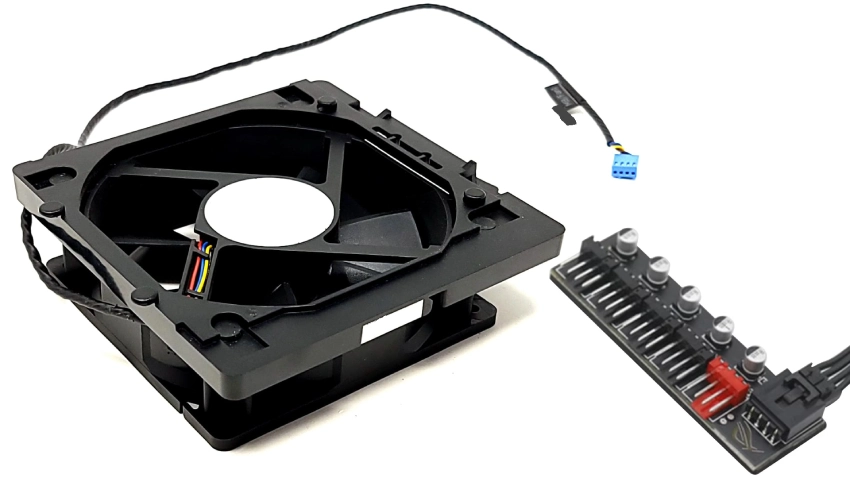
Imagine your computer as a busy city. Heat builds up like traffic jams, slowing everything down. The answer to what is chassis fan lies in its role as the city’s traffic controller. You install a fan inside your PC case to keep air moving and prevent overheating. This fan works by circulating air, drawing in cool air from outside and pushing warm air out. You rely on the fan to manage temperature and dissipate heat from components such as the CPU, GPU, power supply, and storage devices. Without a fan, your system risks overheating, which can lead to performance drops or hardware failure.
You might wonder how long a fan lasts. High-quality chassis fans usually run for three to six years, sometimes even up to ten years with proper care. You can expect a good fan to keep your PC cool for at least five years. The fanacdc DC fan stands out as a smart choice for this job. It uses brushless motor technology, which means quieter operation and longer life. You get precise airflow control, making it ideal for both gaming rigs and office computers.
A chassis fan creates a continuous cooling cycle. It draws in cooler air and expels warm air, keeping your PC at safe temperatures.
Placement in PC Cases
You place a chassis fan in specific spots inside your computer case. Most cases have mounting points at the front, rear, top, or bottom. You install a fan at the front to pull in fresh air. You put another fan at the rear or top to push hot air out. This setup creates a steady airflow path, helping every component stay cool. You can use multiple fans for larger cases or high-performance systems. The fanacdc DC fan fits these locations perfectly, offering flexible sizes and smart control features.
You should check your case for available mounting points before choosing a fan. Proper placement ensures the fan works efficiently. Avoid blocking airflow with cables or other hardware. You want the fan to move air freely, so your PC stays cool and reliable.
Chassis Fan and PC Cooling
Airflow and Heat Management
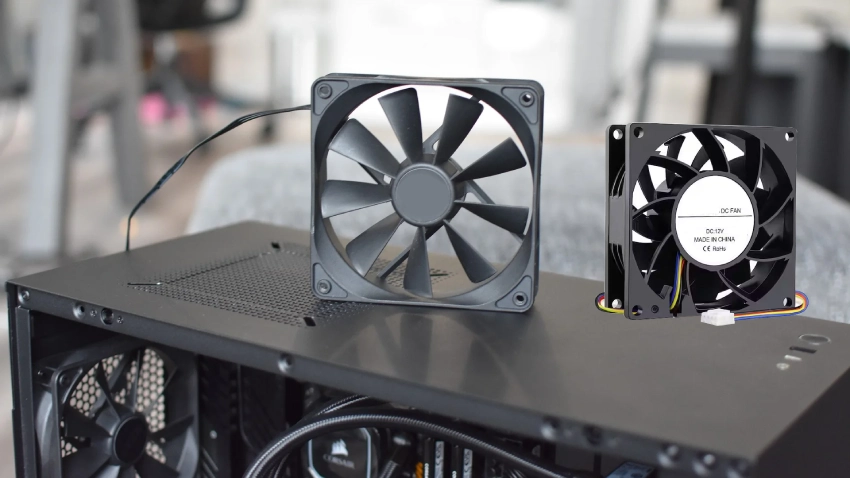
You shape the entire cooling process inside your PC when you install a chassis fan. Airflow becomes the main force that moves heat away from your cpu and gpu. The fan pulls in cooler air from outside the case and pushes out warm air, creating a steady path for heat to escape. This airflow keeps the temperature of your cpu and gpu in check, especially when you run demanding games or heavy software. You want a balance between intake and exhaust, with a ratio close to 2:1, to keep internal pressure low and boost heat dissipation. The design of your case and the placement of each fan decide how well this airflow works. If you set up your fans correctly, you create a cooling cycle that protects every part of your system.
Impact on System Temperature
You see real changes in system temperature when you use a high-quality fan. For example, fanacdc DC fans use PWM technology to adjust speed based on how much cooling your cpu and gpu need. This smart control means your pc cooling stays efficient, even when you push your system hard. Take a look at how different environments benefit from advanced fan technology:
| Industrial Scenario | Benefits of PWM Fan Technology |
|---|---|
| Electronics | Keeps CPUs and GPUs cool for better performance. |
| Data Centers | Cuts energy use and improves thermal management. |
| Computing Systems | Adjusts speed dynamically for top efficiency. |
You also need to think about your room temperature and dust. High ambient temperatures can shorten the life of your fan and put extra stress on your cpu and gpu. Dust can build up on the fan blades, making them less efficient and noisier. Dust changes the balance of the fan, which hurts airflow and heat dissipation. To keep your pc cooling strong, clean your fans often and check for dust.
Do Computer Case Fans Matter
Essential vs. Optional Scenarios
You might wonder if every computer needs extra fans. The answer depends on how you use your pc and what you expect from it. Some situations make computer case fans absolutely necessary. Others let you get by with fewer fans or even just the ones that come with your case.
You can think of your pc like a car engine. If you drive fast and push the limits, you need a strong cooling system. If you only drive to the store, you need less.
You need computer case fans most when your pc handles heavy tasks. These include:
- Playing resource-intensive games for hours
- Rendering videos or working with 3D graphics
- Overclocking your CPU or GPU to get more speed
In these cases, your components create a lot of heat. Without enough fans, temperatures rise quickly. High heat can slow down your system or even cause damage. You want steady airflow to move heat away from your hardware. Good cooling keeps your pc running smoothly and protects your investment.
If you use your pc for web browsing, writing, or watching videos, you may not need as many fans. Basic airflow from one or two fans can keep temperatures safe. You still want to avoid dust buildup and keep air moving, but the cooling demands stay low.
You should always check your case for airflow paths. Even in quiet office setups, a single fan can make a big difference. You want to avoid hot spots where air gets trapped. A well-placed fan helps maintain even cooling across all components.
When you build a compact pc, space becomes a challenge. Small cases trap heat more easily. You need to choose fans that fit tight spaces and still provide strong airflow. In these builds, every fan counts.
You can trust fanacdc DC fans for demanding environments. These fans use brushless motors for quiet operation and long life. They offer smart speed control, so you get the right amount of cooling when you need it most.
Effects on Gaming, Office, and Compact PCs
Different types of pcs have unique cooling needs. You should match your fan setup to your system’s purpose. The table below shows how gaming, office, and compact pcs compare:
| PC Type | Cooling Requirements | Fan Configuration |
|---|---|---|
| Gaming PCs | High-performance cooling due to significant thermal output from components. | Multiple intake and exhaust fans, often with PWM for variable speed control. Liquid cooling systems are common. |
| Office PCs | Moderate cooling needs, suitable for less intensive tasks. | Large-diameter fans (120mm–140mm) for high airflow with lower noise, often with dust filters. |
| Compact PCs | Efficient cooling in space-constrained environments. | Miniature fans (40mm–80mm) for targeted cooling, often with low-power DC operation. |
You see that gaming pcs need the most cooling. Fast graphics cards and processors create a lot of heat. You want several fans to keep airflow strong. Many builders use both intake and exhaust fans, sometimes adding liquid cooling for extra power. Smart fans with PWM control adjust speed based on temperature, so you get quiet operation when you browse and full cooling during intense gaming.
Office pcs run cooler because they handle lighter tasks. You can use larger fans that move more air at lower speeds. This setup keeps noise down and airflow steady. Dust filters help keep the inside clean, so your fan stays efficient.
Compact pcs face the biggest airflow challenge. Small cases leave little room for air to move. You need miniature fans that fit tight spaces but still push enough air to cool your components. Low-power DC fans work well here, offering targeted cooling without taking up much space.
You should always pick fans that match your pc’s size and workload. If you want reliable cooling in tough conditions, fanacdc DC fans give you smart features and strong airflow. These fans help you build a system that stays cool, quiet, and efficient, no matter how you use your pc.
Choosing the Right Fan for Your PC
Selecting Size and Type
You want your fan to fit your pc case and meet your cooling needs. Start by checking the available space in your case. Most cases support 120mm or 140mm fans, but compact builds may need smaller sizes. Larger fans move more air at lower speeds, which means quieter operation and better cooling. Smaller fans spin faster to push the same amount of air, but they create more noise.
Consider the following factors when you choose a fan:
| Factor | Description |
|---|---|
| Fan Size | Affects airflow and fit; common sizes are 120mm and 140mm. Larger fans are quieter and more efficient. |
| Static Pressure | Measures ability to push air through restricted spaces; high for heatsinks, low for open environments. |
| Noise Levels (dBA) | Important for quiet operation; ranges from 15 dBA (silent) to 40+ dBA (loud). |
| Airflow (CFM) | Indicates volume of air moved; higher CFM is better for cooling, especially in high-performance builds. |
| Fan Speed and Control | RPM affects airflow and noise; PWM fans allow dynamic speed adjustment for efficiency. |
You should also look at energy consumption. PWM DC fans, like those from fanacdc, use up to 30% less power than standard models. Lower energy use means less heat and more reliable cooling for your pc.
Placement and Installation Tips
Fan placement shapes the airflow inside your pc. You want to place fans where they can pull in cool air and push out hot air. For a mid-tower case, try a setup with two or three intake fans at the front and one exhaust fan at the back. Add a top fan if your case allows. This arrangement supports optimal airflow and keeps your components cool.
Always aim for more intake fans than exhaust fans. This helps maintain positive air pressure and reduces dust buildup.
You should avoid common mistakes with fan placement. Make sure you orient each fan correctly—intake fans should face inward, exhaust fans should face outward. Do not let cables block the airflow path. Clean your fans regularly to prevent dust from reducing their efficiency. Adjust fan speed to match your cooling needs. If you use smart PWM fans, you can let your system control the speed for you.
When you install a fan, think about which components need the most cooling. Place fans to direct air toward your CPU and GPU. In some cases, you can add a fan above the power supply shroud to cool the graphics card directly. Careful fan placement makes a big difference in how well your pc stays cool.
Myths About PC Cooling Fans
Common Misconceptions
You probably hear a lot of advice about keeping your pc cool, but not all of it holds up. Many people believe that adding more fans always leads to better results. In reality, the role of case fans depends on smart placement, not just quantity. If you fill your case with fans without a plan, you might create turbulence and actually trap heat inside.
Let’s clear up some common myths:
- The more fans, the better. You need the right number in the right spots, not just as many as possible.
- Fan noise is inevitable. You can build a quiet pc by choosing quality fans and adjusting their speed.
- Fans work best at full speed. Running fans at maximum all the time can create noise and even reduce cooling efficiency.
- Fan configuration does not matter if you have enough airflow. Placement and direction shape how well your pc stays cool.
- Default fan curves are good enough. Customizing how your fans ramp up and down can lower noise and improve performance.
You see, myths often lead to wasted money or noisy computers. Focus on what actually works.
Best Practices for Cooling
You want your pc to stay cool and quiet. Start by creating a clear airflow path. Place intake fans low in the case to pull in cool air. Position exhaust fans high to push out hot air. Direct airflow toward the hottest parts, like your graphics card and processor. Always balance intake and exhaust to keep dust out and maintain proper cooling.
Here are some expert tips for getting the most from your fan setup:
- Avoid placing intake and exhaust fans directly opposite each other. This can cause air to short-circuit and skip important components.
- Choose fan size and capacity based on your case and how much heat your pc generates.
- Use multiple fans only if your case is large or your system runs hot.
- Check the arrows on your fan for correct orientation.
- Consider using ducting to send air right where it is needed.
Quality matters more than quantity. Take a look at this comparison:
| Feature | High-Quality Fans | Low-Quality Fans |
|---|---|---|
| Airflow Efficiency | Moves air effectively | May struggle to cool your pc |
| Static Pressure | Handles tight spaces and obstacles | Loses power in restricted areas |
| Noise Levels | Runs quieter | Can get loud and distracting |
| Application Suitability | Works well in compact or crowded cases | Less reliable for challenging setups |
You get better results from a few well-placed, high-quality fans than from filling your pc with cheap ones. Smart choices and careful installation make all the difference.
Conclusion
You now see how chassis fans shape the health and performance of your PC. Think of your computer as a marathon runner. Without proper cooling, it overheats and slows down before reaching the finish line. You give your system a fighting chance by choosing the right fans and placing them smartly.
If you use your PC for gaming, video editing, or any task that pushes hardware, you should invest in high-quality fans. Look for models with brushless motors and PWM control, like fanacdc DC fans. These fans run quieter, last longer, and adjust speed based on temperature. You get efficient cooling without extra noise.
For office work or light browsing, one or two well-placed fans keep temperatures safe. You avoid dust buildup and maintain steady airflow. Compact PCs need special attention. Small cases trap heat, so you must select fans that fit tight spaces and provide strong airflow.
Clean your fans every few months. Dust reduces efficiency and increases noise.
You do not need to fill your case with fans. Focus on quality and placement. A few smart choices make a bigger difference than many cheap fans. If you want to upgrade, start with intake and exhaust fans. Check your case for mounting points and airflow paths.
Imagine your PC as a house. Good fans act like windows that let fresh air in and push stale air out. You create a comfortable environment for your hardware. Assess your needs, choose wisely, and keep your system cool for years to come.
You need chassis fans in high-heat systems, like gaming PCs, but not always in basic setups.
The amount of air that could EVER come through a PCI slot, even with NO bracket installed there, without there being a fan there, is negligible and is in no way beneficial to a high TDP system like all modern gaming systems are.
Before buying more fans, check your case size, monitor temperatures, and note any hot spots. Try these steps for better cooling:
- Prioritize smart fan placement over quantity.
- Use quality intake fans behind dust filters.
- Experiment with configurations to find what works best.
Think of your PC as a greenhouse—good airflow lets everything inside thrive.
FAQ
What is the main purpose of a chassis fan?
You use a chassis fan to move air inside your computer case. This airflow helps cool your hardware and prevents overheating. Think of it as a breeze that keeps your PC comfortable during heavy tasks.
How many chassis fans should you install?
You usually need two or three fans for most setups. Gaming PCs may require four or more. Compact cases benefit from one or two small fans. Always check your case size and cooling needs before adding more.
Do chassis fans affect noise levels?
You notice less noise with larger, high-quality fans. Smaller fans spin faster and sound louder. Smart PWM fans adjust speed, so your PC stays quiet when idle and cools efficiently during intense use.
Can you mix different fan sizes in one PC?
You can combine various fan sizes. Place larger fans for intake and smaller ones for exhaust. This mix creates balanced airflow. Always match fan placement to your case layout for best cooling.
How often should you clean your chassis fans?
You should clean your fans every three months. Dust builds up and slows airflow. Use compressed air or a soft brush. Regular cleaning keeps your PC cool and extends fan life.